


Get Refmade free

You need only Claude Code or Codex. If you have neither, the app guides you through setup and sign-in. Mac 0.4.0 came out on October 10, 2026, and Windows is 0.3.2. New features are Mac-only. On Mac 0.4.0 the app’s screens come in eight languages; Windows 0.3.2 is Korean only.

The app is free. Only your AI usage is charged to your plan or API key.

Mac · Apple silicon

0.4.0
Download for Mac
File
Refmade-0.4.0-arm64.dmg · about 190 MB
Works with
Apple silicon (M1 or later), macOS 13 or later
Check that the file is correct

Paste the line below into Terminal. If the value it prints matches the one below it, the file is correct.

shasum -a 256 ~/Downloads/Refmade-0.4.0-arm64.dmg

8fdd591d981b4ba45acdcf1ed29eb2c7b4ead1c84fbdb4f4fa4404137d2e1fd6

Windows · 64-bit

0.3.2
Download for Windows
File
Refmade-0.3.2-x64.exe · about 130 MB
Works with
Windows 10 and 11, 64-bit
Version offered
0.3.2 · Korean screens only. The new features in 0.4.0 are Mac-only.
Check that the file is correct

Paste the line below into PowerShell. If the value it prints matches the one below it, the file is correct (upper or lower case does not matter).

Get-FileHash $HOME\Downloads\Refmade-0.3.2-x64.exe

fe84387f4d428919181570c2b80b2b3e9f8560cbda770c552e30edfd6e3e6efb

Install in three steps

Install new versions the same way, and your task history stays. The first-open check (Mac ‘Open Anyway’, Windows ‘More info → Run anyway’) comes back once for each new version.

Mac

  1. Step 1

    Move it to Applications

    Double-click the downloaded Refmade-0.4.0-arm64.dmg to open it. In the window that appears, drag the Refmade icon into the Applications folder.

    The download is usually in your Downloads folder. After moving the app, close that window. You can also eject the Refmade disk from your desktop.

  2. Step 2

    First time: ‘Open Anyway’

    macOS blocks the app the first time you open it. That is not a fault: the app is not notarized by Apple. After you allow it once, that version opens normally.

    1. Double-click Refmade in the Applications folder. When the warning window appears, close it (‘Done’, or ‘Cancel’ on macOS 13 and 14).
    2. Go to System Settings → Privacy & Security.
    3. Near the bottom, find the line saying ‘Refmade’ was blocked and click ‘Open Anyway’ beside it.
    4. In the window that appears once more, click ‘Open Anyway’ (‘Open’ on macOS 13 and 14) and confirm with your Mac password or Touch ID.
  3. Step 3

    Set up the AI and start

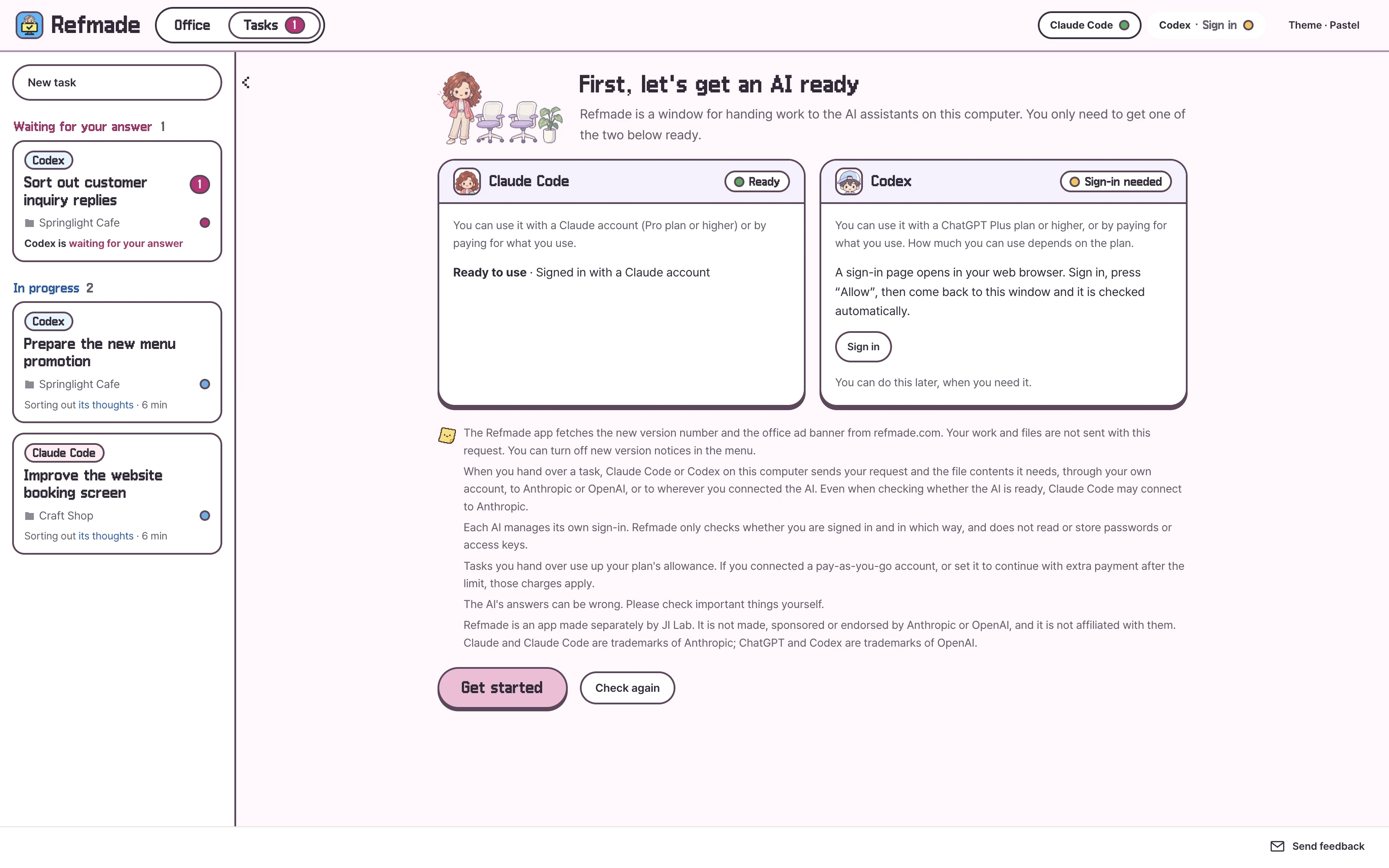
    You need just one of Claude Code or Codex. If you have neither, click ‘Open setup guide’. For Claude Code, copy the line in the guide window and paste it into Terminal. For Codex, install Node.js first, then enter one line. Sign in with ‘Sign in’; it finishes in your browser. If it is your first time, Claude Code is easier because setup is one line.

    You need Claude Pro or higher, ChatGPT Plus or higher, or a pay-as-you-go API key.

An example of the AI connection guide in Mac 0.4.0. Claude Code is ready and Codex needs sign-in.
Real Mac 0.4.0 app screen · AI connection guide exampleView larger ↗

Windows

  1. Run the installerRun the downloaded Refmade-0.3.2-x64.exe. If a ‘Windows protected your PC’ window appears, click ‘More info’, then ‘Run anyway’. The app is not code-signed, so this window appears once for each new version.
  2. InstallIn the setup wizard, click ‘Next’ to the end and Refmade appears on your desktop and in the Start menu.
  3. Set up the AI and startPrepare the AI on the first screen. For Claude Code, click ‘Open setup guide’ and paste one line into PowerShell. For Codex, install Node.js and enter one line in Command Prompt. If it says ‘Git is required’, install Git for Windows first. Sign in with ‘Sign in’; it finishes in your browser.

Frequently asked questions

Why does a warning appear?

The Mac app is not notarized by Apple and the Windows app is not code-signed, so each asks you to confirm the first time you open it. For every new version, click ‘Open Anyway’ on Mac and ‘More info → Run anyway’ on Windows, once. You can check that the file is correct with the check value (SHA-256) on each card.
Do I have to open the terminal to install?

You open it once, when you first install the AI. The app’s ‘Open setup guide’ shows the line to paste, and Codex needs Node.js installed first. If one of them is already installed, you do not need the terminal.

Where do my files go?

Not to Refmade’s servers. File contents needed for a job are sent by your own Claude Code and Codex, through your account, to Anthropic or OpenAI. The app fetches the new version number and, on Mac, the office billboard settings and banners. These requests carry no job content or files.

What does it cost?

The app itself is free. The work you hand off uses your Claude or ChatGPT plan, and if you connected a pay-as-you-go key, you pay for what you use. Auto mode and repeating schedules on Mac run the AI several times, so they use more.

Does it update automatically?

No. When a new version is out, a ‘Get the new version’ button appears at the top of the app. Download it from refmade.com/en/download and install it the same way, and your task history stays. You can turn off the notice with ‘Notify me of new versions’ in the menu.

How do I uninstall it?

Move Refmade from the Applications folder to the Trash. To remove your task history too, hold the option key and open Finder’s ‘Go’ menu, choose ‘Library’ → Application Support → Refmade, and delete that folder (~/Library/Application Support/Refmade). On Mac, result files from jobs where you did not choose a folder are inside this folder, so move any you want to keep somewhere else first. On Windows, remove Refmade in Settings → Apps → Installed apps, and delete the %APPDATA%\Refmade folder for the task history. The Claude Code and Codex records stay.

RELEASE NOTES

Refmade updates

New features and changed screens, version by version.

NEW UPDATE

Mac 0.4.0

Use Refmade in
eight languages

  • Added
    The app, workspace and office in your language

    Choose Korean, English, Japanese, Simplified Chinese, Spanish, Brazilian Portuguese, German or French for the app screens, the workspace, the office and refmade run in the terminal.

  • Added
    Starts in your computer’s language

    If your computer’s language is one of these eight, the app opens in it. To change it, choose ‘View > Language’ in the menu.

  • Added
    The AI answers in your language too

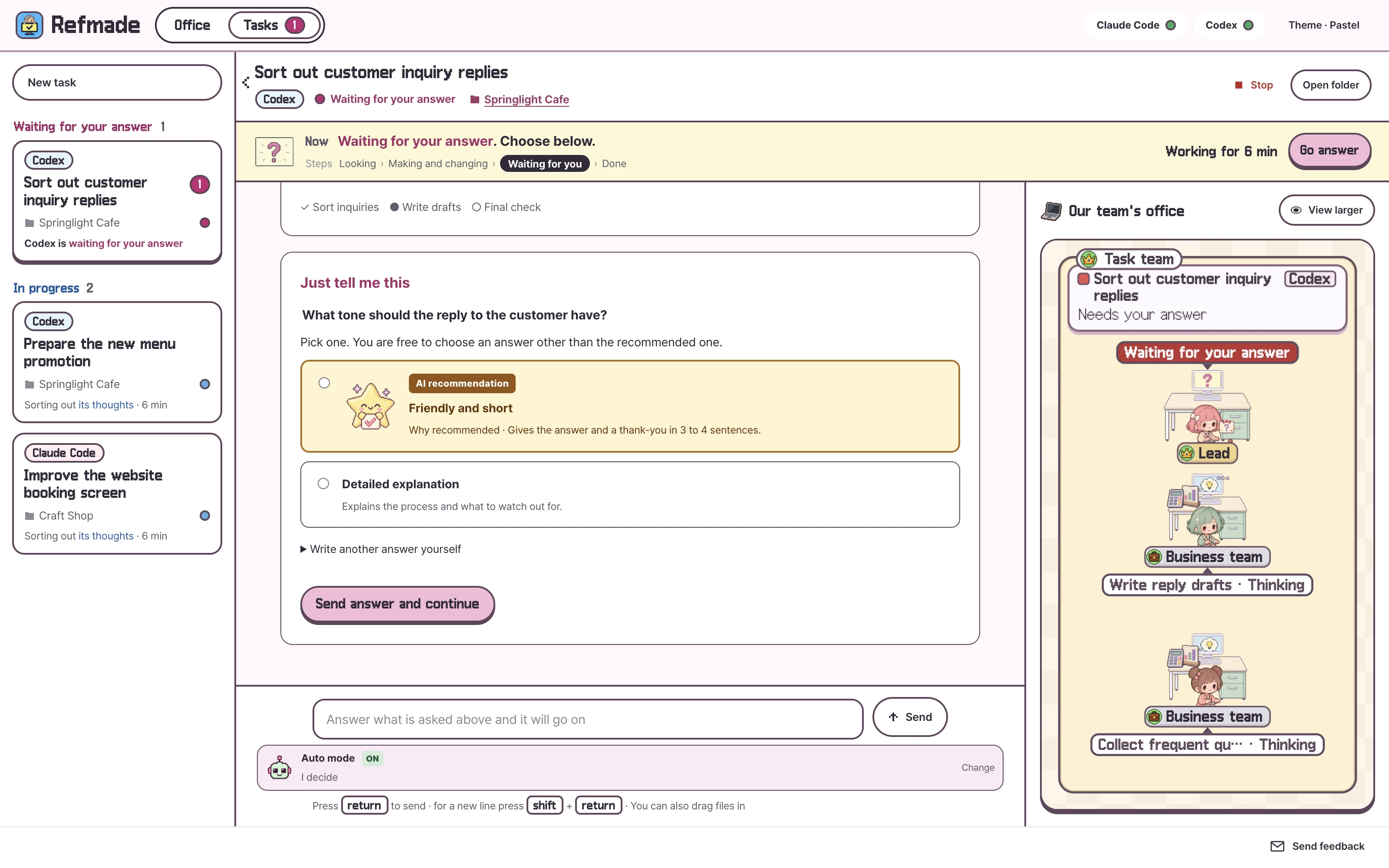
    The AI’s answers come in the language you chose. If a question is written in a language the app does not understand, it never decides for you: you always decide yourself.

  • Added
    A page per language on the site

    refmade.com has a page in each language.

This update is for Mac. The public Windows version is 0.3.2, and its screens are in Korean only.

The translations were made with AI help and have not been checked by native speakers. If something reads oddly, tell us with the ‘Send feedback’ button at the bottom right.

Get the latest version
What changed The decision card in the real Mac 0.4.0 app. The card’s title and buttons appear in the language you chose.
Real Mac 0.4.0 screen · decision cardSee the full screen ↗
Earlier updates · by version

0.3.9 · Mac

2026-10-10
  • ‘Waiting for your answer’, decision card titles and the office’s ‘Need reply’ count change color and bounce twice every 3.6 seconds.
  • While the AI works, as in ‘Claude Code is working’, the letters move one after another.
  • ‘Done’, new results and AI recommendations bounce just once when they appear. If ‘Reduce motion’ is on in System Settings, the color changes but nothing moves.

Windows stays on 0.3.2.

0.3.8 · Mac

2026-10-10
  • The ‘Send feedback’ button at the bottom right opens an email window.
  • If the mail app cannot open, you can copy the address and send it yourself.

Windows stays on 0.3.2.

0.3.7 · Mac

2026-10-08
  • Made the Auto mode AI helper picture clear even when shown small.
  • Polished the status numbers and icons so they fit inside the cards.

Windows stays on 0.3.2.

0.3.6 · Mac

2026-10-08
  • Reworded on-screen guidance in shorter, more familiar words.
  • Under ‘Auto mode’, you choose ‘AI decides’ or ‘I decide’.

Features are unchanged. Windows stays on 0.3.2.

0.3.5 · Mac

2026-10-08
  • AI recommendations and automatic progress are easy to find, with their own pictures and accent color.
  • During automatic progress you choose ‘I decide’ or ‘Follow the AI’s recommendation’, and you can see the answer the AI chose and why in the conversation.
  • Rebuilt the game office’s walls, floor, desks, coffee corner and sofa in the same block style.
  • Characters now work at their desks and sit on the sofa in places that fit the furniture.
  • The office resizes with the number of teams and leaves a walkway between rest areas.

This new version is for Mac. Windows stays on 0.3.2.

0.3.4 · Mac

2026-10-08
  • You ask in the conversation instead of picking a separate feature menu. The information and choices you need appear in the conversation.
  • The office billboard keeps a wide banner ratio so you can see the picture and text together.
  • You can keep using the one-line hand-off from the office, automatic progress, decision prompts and teams by project.

This new version is for Mac. Windows stays on 0.3.2.

0.3.3 · Mac

2026-10-08
  • Hand off a job in one line from the office, and the work and result checks continue automatically.
  • When your choice or permission is needed, it explains the reason and the options simply. Recommendations from the AI come with their reasons.
  • Shows Claude Code and Codex zones by project and teams by job together.
  • Added the pastel pixel and block-game themes, with movement that follows the real job status.

0.3.2

2026-10-01
  • Emphasized the start, answer and apply-changes buttons, and made the settings, copy and list buttons easier to tell apart.
  • New tasks tell you what to do next, and while it waits for your answer you focus on the question card.
  • The first window now fits your screen size, and narrow windows and the setup guide window are laid out more cleanly.

0.3.1

2026-10-01
  • Released the first installer for Windows (64-bit).
  • The yellow strip at the left of card title bars in the game theme no longer shows.
  • Lowercase proxy settings (such as http_proxy) now reach Claude Code and Codex when you split a job into teams, too.

0.3.0

2026-09-30
  • It now tells you in the top bar when a new version is out. You can turn this off with ‘Notify me of new versions’ in the menu.
  • When a job split into teams stops over a sign-in problem, a ‘Sign in’ button appears.
  • Settings you made in the terminal (turning off statistics, language and so on) now reach Claude Code and Codex even when you start the app from the Dock. API keys are not carried over, so your billing method does not change.
  • Particles that follow a closing quotation mark no longer drop onto the next line in Korean text.